CN Remote Panel

by Phil Pendlebury

USER REFERENCE


Download PDF Manual Get it on Gumroad Download PDF Quick Reference

Audio Overview

Video Overview

If you have a Google account, you can access the CN Remote helper on Notebook LM. Ask it questions and get detailed information about the application.

CN Remote on Notebook LM

Workflow Spotlight

Collapsible Stealth Mode

Save screen real estate without losing control.

1. Shrink It

Right click the panel and select Make Collapsible. The entire panel shrinks down to a single, unobtrusive control button.

2. Hover to Expand

Simply mouse over the control button to instantly reveal your full panel. Move your mouse away, and it vanishes again.

* Customize the size, color, and font of the collapse button in the Panel Settings.

Quick Reference Tools

Macro Syntax Guide

  • Modifiers: Use lowercase ctrl, alt, shift, win.
  • Sequences: Separate keys with commas.
    Example: Ctrl+C, 500, Ctrl+V
  • Delays: Use milliseconds for pauses between keys (e.g., 500).
  • Repeats: Prefix the whole string with [Repeat=X].
  • Numpad: Use numpad0 through numpad9.

Interactive Help

  • Notebook LM: Use the link in the header to ask specific questions about setup and troubleshooting.
  • Manual: Use the Reference tab below for full key aliases.
  • Troubleshooting: Always verify Windows MIDI or loopMIDI ports are correctly named and active in the Global Settings.

Installation Guide

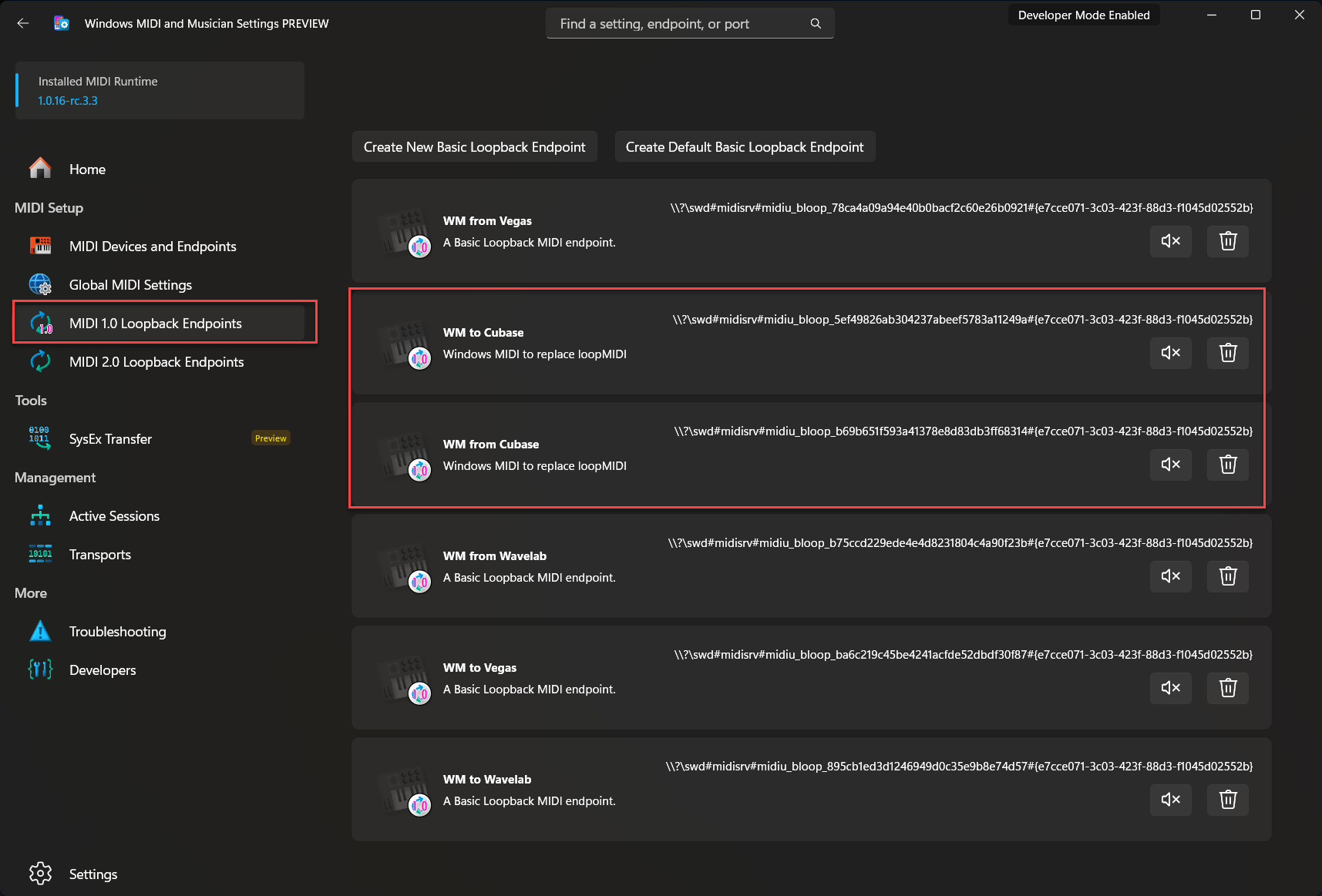
1. Windows MIDI or loopMIDI Setup

Open Windows MIDI and Musician Settings (or download loopMIDI) and create two virtual ports. These ports act as the cables between the panel and your DAW.

  • WM Into Cubendo (Panel sends to DAW)
  • WM From Cubendo (DAW sends to Panel)
Windows MIDI Setup
Click to Enlarge

Windows MIDI Port Creator

You can use the Windows MIDI Port Creator to help you make your MIDI ports or import loopMIDI ports.
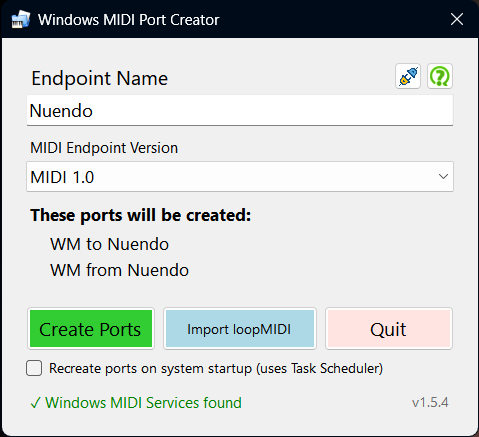
Windows MIDI Port Creator
Click to Enlarge

2. DAW Connection

Open Cubase/Nuendo Studio Setup.

Go to MIDI Remote and load the script "Phil Pendlebury PAP". Ensure the Input and Output ports match those you created in Windows MIDI or loopMIDI.
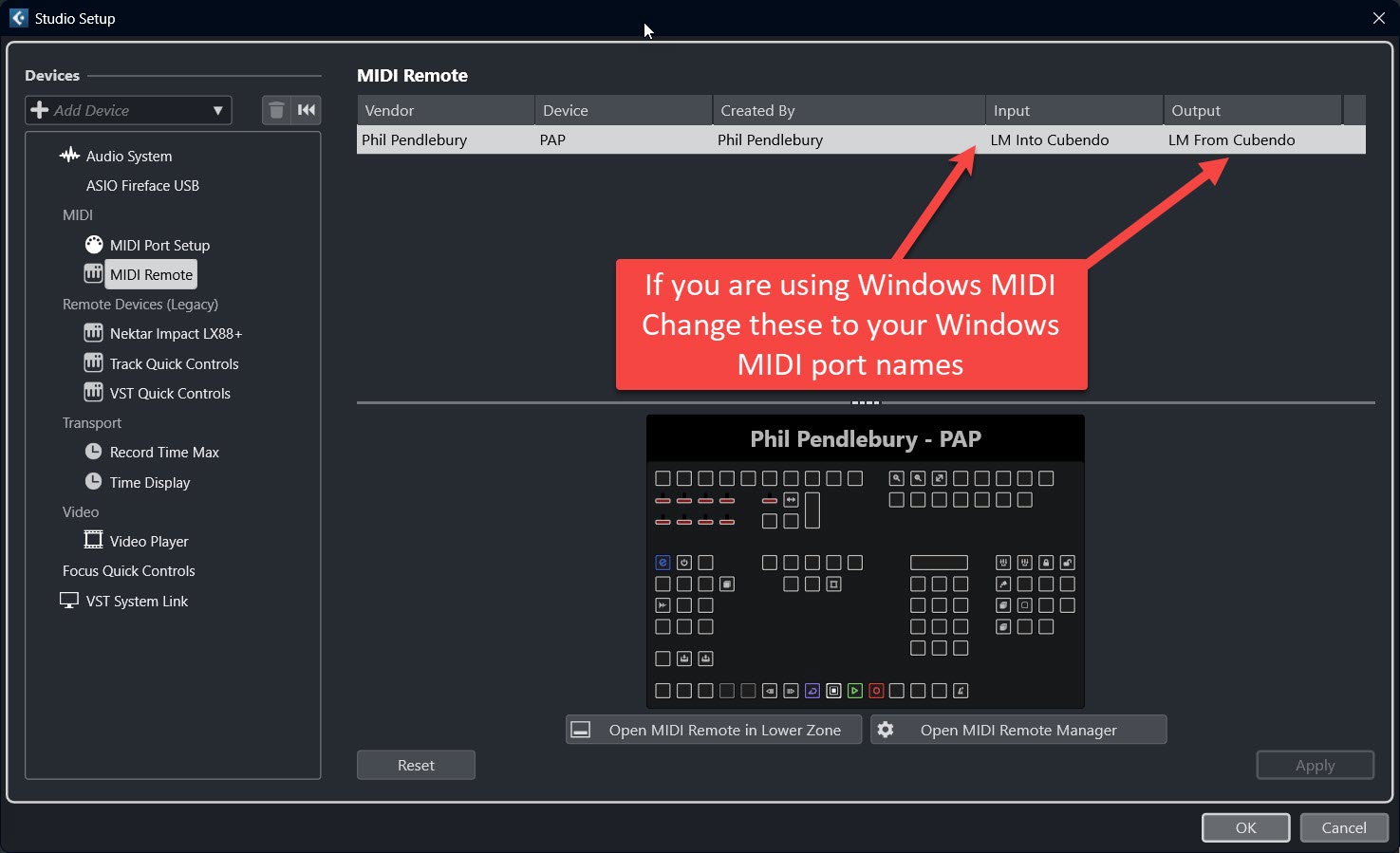
Cubase Studio Setup
Click to Enlarge

3. Global Settings

Launch the panel. Open Edit Global Settings to configure your ports and language.

Enable Auto Switch if you want the panel to detect which application (Cubase, Wavelab, etc.) is active and switch button layouts automatically.
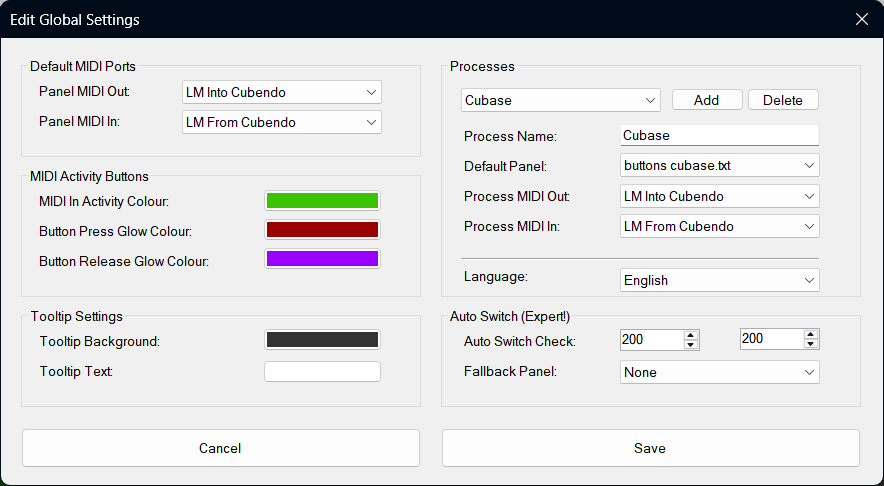
Global Settings
Click to Enlarge

Built for Your DAW

The panel can be customised for any application. Here are examples of different layouts in action.

Cubase / Nuendo

Cubase Button Panel

Complex layouts with coloured sections for transport, editing, and macros.

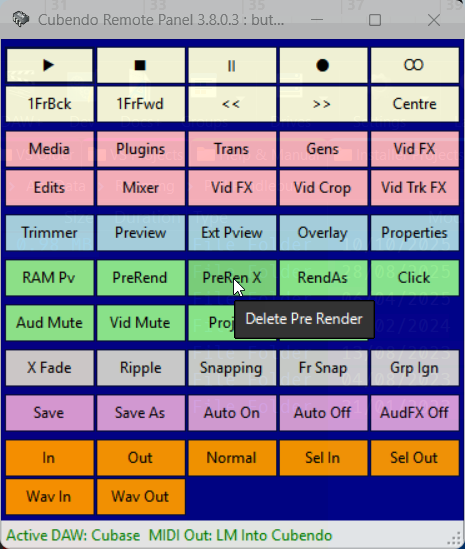
Vegas Pro

Vegas Button Panel

Optimised for video workflows with render and preview toggles.

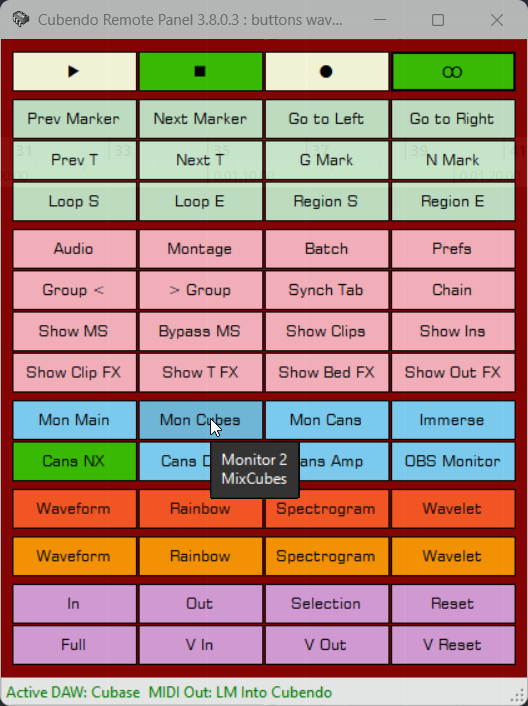
WaveLab

Wavelab Button Panel

Streamlined for mastering tasks, markers, and analysis tools.

Editing & Customisation

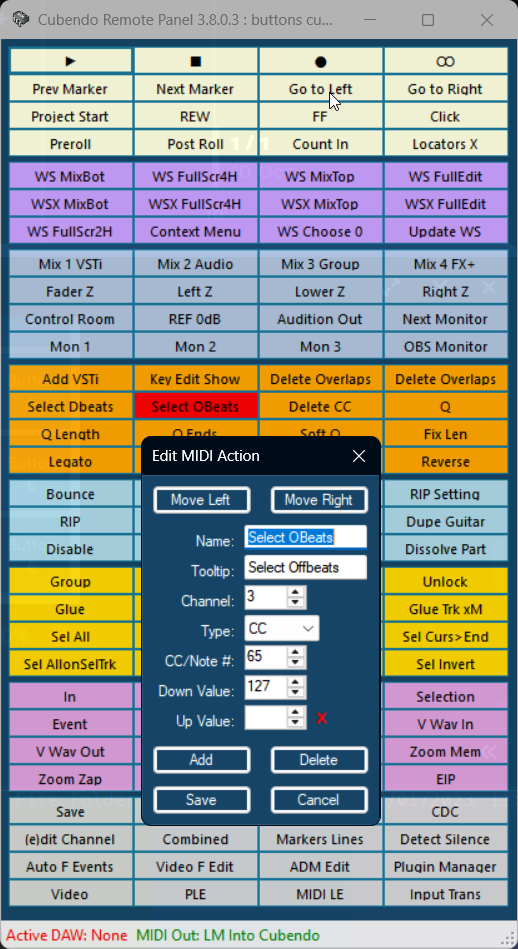
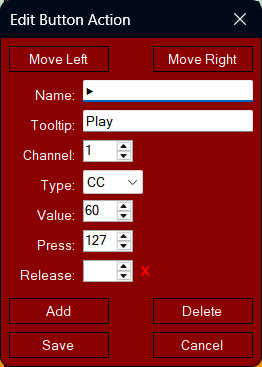
Edit Button Actions

Right click any button to modify its behaviour.

Edit Button Action Dialog
  • Type: Choose CC, NOTE, or KEY.
  • Value: The MIDI value or Key String.
  • Press/Release: Values sent on Mouse Down/Up.

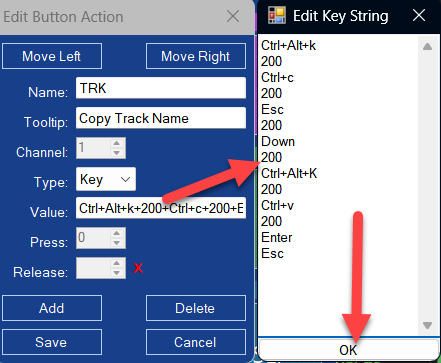
Key String Editor

Create complex macros with delays.

Key String Editor
  • Combine keys: Ctrl+Shift+L
  • Add delays: 200 (ms)
  • Repeat actions: [Repeat=5]

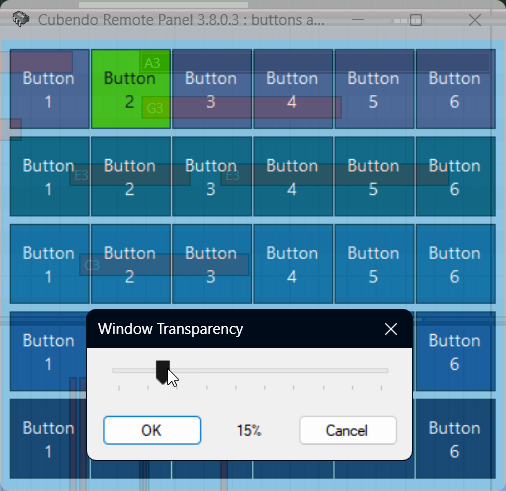
Visual Styles

Full control over transparency, fonts, and dimensions.

  • Transparency: Adjust the opacity slider to blend the panel into your workspace.
  • Button Width/Height: Resize grid elements to fit your screen.
  • Fonts: Pick any installed system font.
  • Colours: Customise background, borders, and text.
Transparency Settings

Manual Reference

Special Key Commands

Use these aliases in the "Value" field when Type is set to KEY.

FunctionAlias
Modifiersctrl, alt, shift, win
Navigationenter, esc, tab, backspace
Arrowsup, down, left, right
FunctionAlias
Numpadnumpad0 ... numpad9
Numpad Miscnumpadenter, numpaddiv, numpadmult
Logic2000 (Delay ms), [Repeat=x]

System Tray Options

The application runs in the Windows System Tray. Right click the icon for these options:

Always On Top
Keeps the panel floating above all other windows.
Show Title Bar
Toggles the main window title bar (Cannot be used with Collapsible mode).
Select Button Panel File
Manually load a specific layout file (e.g., buttons_wavelab.txt).
Move Panel to Centre
Rescue the panel if it gets lost off screen.

Button File Structure

Button layouts are stored in .txt files. You can edit them manually.

Section Headers

To create coloured sections in your panel, use the specific ID format:

#1, Transport Controls, LightYellow
// Buttons go here...
#2, Macros, #002790
// More buttons...

Button Data Format

Each line represents a button with fields separated by commas:

Name, Tooltip, Channel, Type, Value, Press, Release

Example: Play, Start Playback, 1, CC, 60, 127, 0